
How to Add Omakase.ai Voice to Your Site

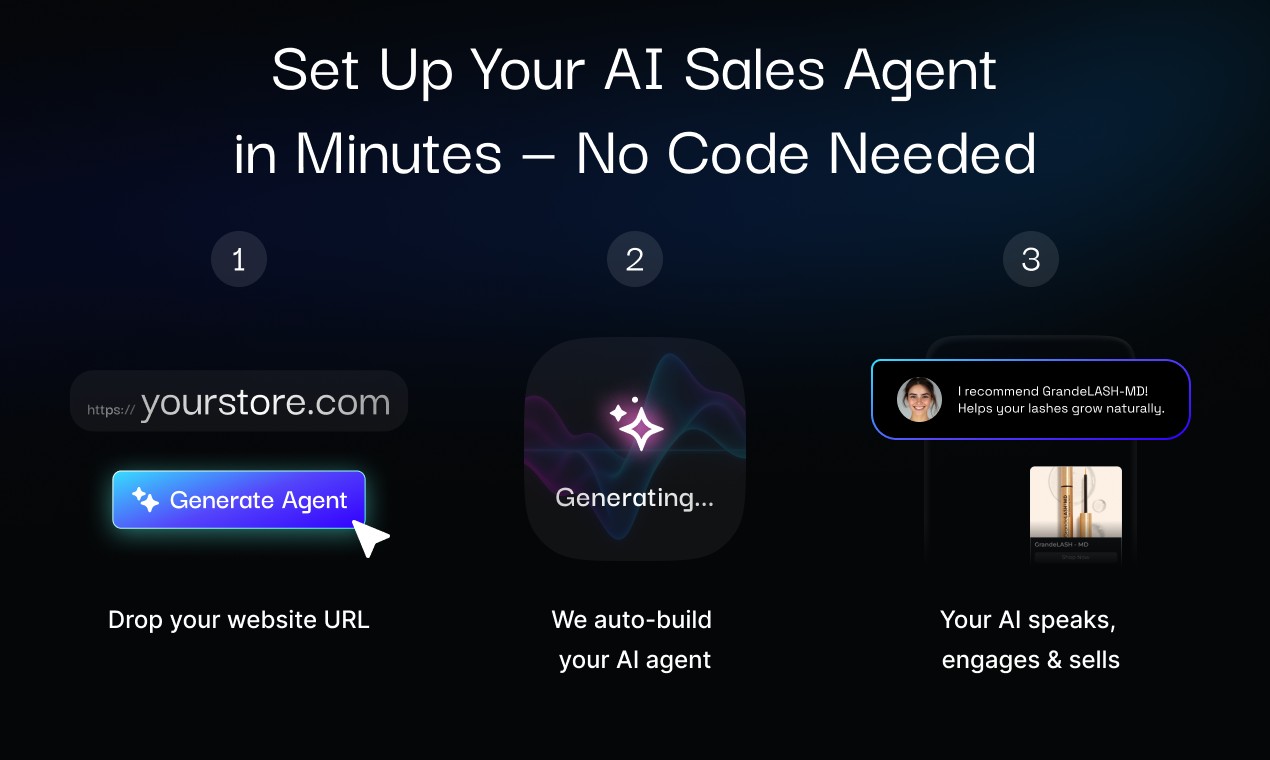
So you’re ready to let your website talk — awesome. Omakase.ai Voice turns your site into a voice-powered sales machine that listens, recommends, and converts.
All you need to do is add a small snippet of code before the </body> tag on your site.
This guide will walk you through the steps for these platforms:
- Shopify (check out our blog about our Shopify App)
- Google Tag Manager
- Wix
- WordPress
- Squarespace
Here are the basic instructions (detailed walkthroughs below):
- Shopify (editing theme.liquid)
- Google Tag Manager (Custom HTML tag + All Pages trigger)
- Wix (Custom Code section in settings, load at body end)
- WordPress (manual edit of footer.php via Theme File Editor)
- Squarespace (paste into Footer section of Code Injection settings)
Let’s get into it!
The Code Snippet
You’ll paste the code before the closing </body> tag in your site’s theme or settings.
To find your code snippet, tap “Add [your agent’s name] to your site” on the top left of your dashboard while logged in.
Click the copy button (top right) to grab the entire snippet quickly.
Shopify
- Go to your Shopify Admin
- Navigate to Online Store > Themes
- Click the three dots next to your live theme and select Edit code
- In the Layout folder, open
theme.liquid - Scroll to the bottom and paste your code snippet just above
</body> - Click Save
Google Tag Manager (GTM)
- Log in to Google Tag Manager and select your container
- Click Tags > New
- Name it something like “Omakase Voice Agent”
- Choose Custom HTML as the tag type
- Paste the code into the HTML box
- Set the Trigger to All Pages
- Click Save and then Submit to publish
Wix
- Go to your site dashboard
- Navigate to Settings > Custom Code
- Click + Add Custom Code
- Paste the script into the box
- Choose to place it at the Body - end
- Apply to All Pages, load once per visit
- Click Save, then Publish your site
WordPress (Without a Plugin)
- From your WordPress Dashboard, go to Appearance > Theme File Editor
⚠️ Pro Tip: Use a child theme or back up your theme before editing directly.
- Open
footer.php - Paste the script just before the
</body>tag - Click Update File
Squarespace
- Log in to Squarespace
- In the left-hand menu, click Settings > Advanced > Code Injection
- Scroll to the Footer section and paste the script there
- Click Save in the top left corner
Final Tips
- You can test your Voice Agent instantly by refreshing your site
- Want to customize the behavior or voice of your agent? Reach out—we’re here to help
- Need help? Email us at sales@omakase.ai or schedule a call
That’s it — You’re Live!
Once the script is in place, your Voice Agent will automatically activate.
No extra setup required. You’re now giving your visitors a whole new way to engage — by talking.
Let us know how it goes. We’d love to hear what your Voice Agent is saying. 😊